Cookies for analytics and advertising
We use cookies for analytics and advertising, both sent to Google. Refusing changes nothing you can see.Read the privacy page
Converting PNG to JPG makes a photograph around ten times smaller with no visible change, and a screenshot barely smaller and slightly blurred around the text. Drop the file above and it converts inside your browser — free, without an account, and with the quality and background colour under your control.
Up to 100 files at once. Mixed formats are fine.
They convert one after another and download together as a ZIP.
PNG to JPG

Almost everyone doing this conversion is doing it for one reason: the file is too big. An upload limit, an email attachment, a page that loads slowly. JPG is the usual answer and it is usually the right one — but whether it helps at all depends on what your image contains, and that is worth thirty seconds before you convert a folder of them.
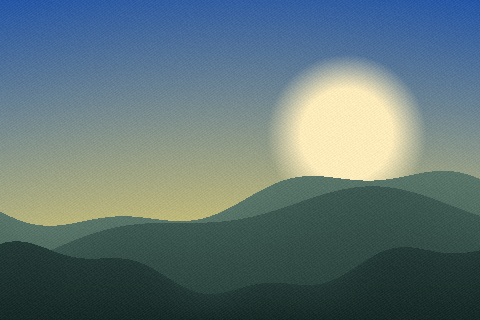
JPG was designed for photographs. Its compression works by discarding detail the eye is bad at noticing, which is a superb trade on a picture of a face or a landscape where colours shift gradually. A photograph converted from PNG to JPG routinely loses ninety per cent of its size with no visible change at all. If that is what you have, convert it and stop reading.
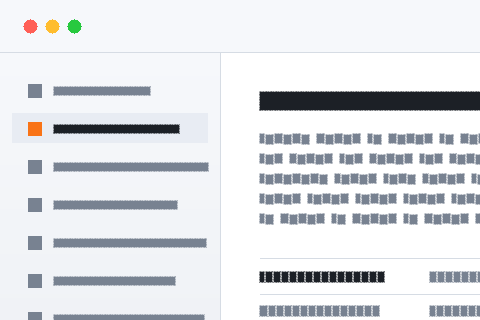
Screenshots are the opposite case, and the one where people are disappointed. A screenshot is mostly flat areas of identical colour with hard black-on-white edges — exactly the structure JPG handles worst. The compression smears the boundary between a letter and its background, which shows up as a faint halo around text, and because PNG is already extremely efficient at storing flat colour, the file often barely shrinks. Sometimes it grows.
A screenshot of text should stay a PNG, or become a WebP, which handles flat colour and photographs equally well and is read by every current browser. If it has to be a JPG because something downstream demands one, raise the quality setting to 95 and accept a larger file — that reduces the haloing without removing it.
Transparency is the thing to decide before rather than after. JPG has no alpha channel — the format simply cannot record that a pixel is see-through — so anything transparent has to be filled in with a solid colour. White is the default and it is the right guess most of the time, but a white logo on a transparent background becomes a white logo on white and disappears.
You can set the fill colour in the settings under the result, which covers the case where you know what the image will sit on. If the transparency itself is the point, WebP keeps it and still compresses like JPG, and PNG keeps it at the size you were trying to escape.
This is a one-way door, and the warning is easy to give and easy to ignore. JPG discards information permanently. Converting the result back to PNG does not recover it — it stores the already-damaged picture without further loss, which is not the same thing. Keep the PNG if there is any chance you will edit the image later.
Every additional save as JPG compounds the damage, which is why an image that has been through a few chat apps looks the way it does. Convert once, from the original, and keep the original.
An upscaler returns a PNG because it must not throw away the detail it just added, so a photo enlarged four times comes back at 40 MB or more. Image generators writing PNG produce the same problem at a smaller scale. Nothing is wrong with the file; it is simply far larger than anywhere it needs to go will accept.
JPG is the right answer once the image is finished and only has to be looked at — expect low single-digit megabytes with no visible difference on screen. It is the wrong answer if another pass of upscaling, retouching or compositing is still coming, because each of those would then be working from a copy that has already had detail removed.
The quality control appears once you have a result, so you can convert, look, adjust and convert again without starting over. The default sits at 82: high enough that most people cannot tell, low enough to be worth the trouble. In our own measurements the same image came out at roughly 6 KB at quality 20, 20 KB at 82 and 38 KB at 95 — the last step buys very little for nearly double the size.
All of it happens inside your browser. The image is not uploaded, there is no queue, and the page keeps working with your network switched off.
| PNG | JPG | |
|---|---|---|
| Full name | Portable Network Graphics | JPEG Image |
| File extension | .png | .jpg, .jpeg, .jpe |
| Media type | image/png | image/jpeg |
| Compression | Lossless — nothing is discarded | Lossy — file size is bought with quality |
| First published | 1996 | 1992 |
| Published by | PNG Development Group | Joint Photographic Experts Group |
| Specification | ISO/IEC 15948 | ITU-T T.81 |
| Licensing | Open standard | Open standard |
| Standing today | Current | Current |
| Bit depth | 16 | 8 |
| Colour it can describe | RGB, greyscale, indexed palette | RGB, greyscale, YCbCr |
| Largest image | 2,147,483,647 px per side | 65,535 px per side |
| Opens in a browser | Every browser | Every browser |
| Considered instead | WebP, SVG, JXL | WebP, AVIF, HEIC |
JPG has no alpha channel. A transparent PNG comes out with those areas filled in — white unless something else is set — and no setting in JPG brings the transparency back.
PNG carries up to 16 bits per channel and JPG stores 8. The extra precision is what survives heavy correction without banding, so the conversion is best made after the editing rather than before it.
Adobe Photoshop and GIMP read both PNG and JPG, so there is a way to check the result against the original without a second tool.
The file gets substantially smaller, and it gets smaller by discarding detail. PNG keeps everything; JPG keeps what the eye is poor at noticing. On a photograph that trade is close to free; on text, a screenshot or a line drawing it is visible as haloing around the edges.
PNG is PNG Development Group's format, published in 1996. It records 16 bits per channel.
JPG comes from Joint Photographic Experts Group and dates from 1992, specified as ITU-T T.81. Adobe Photoshop, GIMP and Preview all read it.
No. This conversion runs entirely inside your browser, so the file never leaves your device. You can confirm it yourself: open the network tab of your browser's developer tools and convert something. You will see the page load, plus the analytics and advertising the site is paid for with — and nothing carrying your file. The engine behind this particular pair is jSquash, WebAssembly builds of the reference image codecs; your browser fetches it once and caches it.
For a photograph, dramatically — a PNG photo converted to JPG is routinely a tenth of its original size with no visible difference. For a screenshot, a logo or anything with flat colour and sharp edges, sometimes barely at all, and occasionally larger. PNG is already very good at exactly the kind of image JPG is bad at.
JPG cannot store transparency, so transparent areas are filled with a solid colour — white by default. You can change that colour in the settings under the result. If the transparency matters, convert PNG to WebP instead: it compresses like JPG and keeps the alpha channel.
You can, but it will not restore anything. JPG discards detail permanently, and converting back to PNG simply stores the damaged image losslessly. Keep the original PNG if you might need it.
Because JPG compression is designed for photographs — smooth gradients of continuous tone — and copes badly with the hard boundary between text and background. The smudging around letters is called ringing, and no quality setting removes it entirely. Screenshots of text should stay PNG, or go to WebP.
Yes. The setting appears under the result once the first conversion is done, and you can convert again as many times as you like to compare. The default of 82 is a deliberate middle: high enough that most people see no difference, low enough to be worth doing.
Yes. The conversion is JavaScript and WebAssembly running in the browser you already have, so a phone converts a PNG to JPG the same way a laptop does. Nothing is installed and nothing is uploaded.
This page converts one into the other. If you are choosing rather than converting, PNG vs JPG answers which to use, for what, and what each is bad at.
The claims this page makes about PNG and JPG are checkable, and these are the documents that settle them.